Back to overview

Soulmask: updates, settings and interface

Game updates, plugin versions and improvements to our interface with a traceable history.

Recorded, available and installed are different states. Your actual installation status and suitable updates are shown in the server panel.

Game update Published

Patch Note 01(16.11.2023)

Announcement from the official source. The source describes the changes; your server installation status is shown separately in the update center.

Effects on plugins

No independent plugin compatibility test is documented for this announcement. Check the affected plugins in the update center before changing game versions.
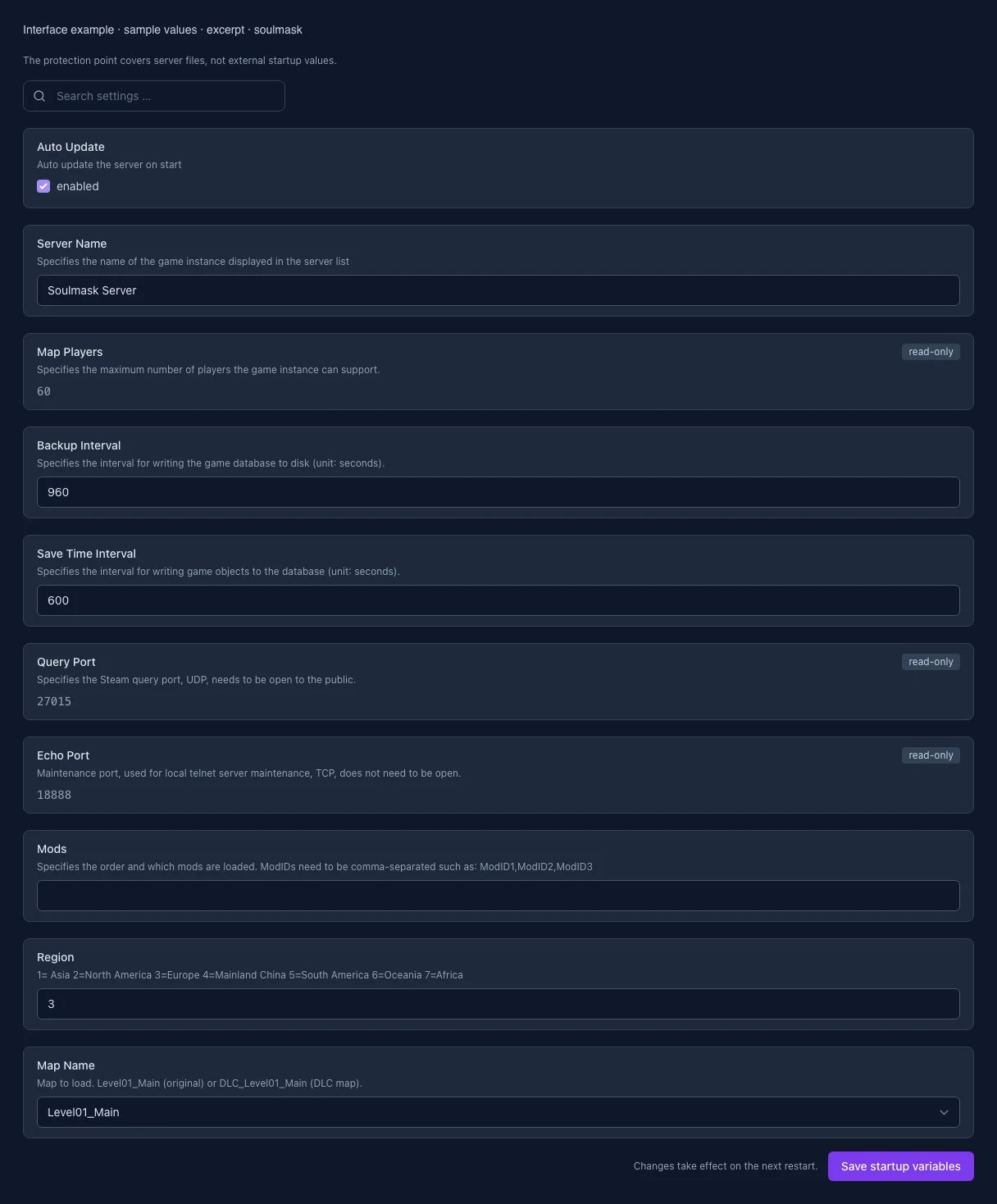
What the interface looks like

The image shows the interface on its capture date; earlier versions may differ.

Excerpt of the current interface with sample values. Values and prerequisites illustrate the controls; available tools depend on server software, plugins and permissions.
Excerpt of the current interface with sample values. Values and prerequisites illustrate the controls; available tools depend on server software, plugins and permissions. · Captured on 2026-10-08

What the settings do

These values come from our guided editors. Defaults are the editor starting values; they do not show the contents of a customer server.

Auto Update

Auto update the server on start

Setting
AUTO_UPDATE
Default
1
When it takes effect
Takes effect after saving and restarting the server.
Server Name

Specifies the name of the game instance displayed in the server list

Setting
SERVER_NAME
Default
Soulmask Server
When it takes effect
Takes effect after saving and restarting the server.
Map Players

Specifies the maximum number of players the game instance can support.

Setting
MAX_PLAYERS
Default
60
Range / options
1 – 70
When it takes effect
Takes effect after saving and restarting the server.
Backup Interval

Specifies the interval for writing the game database to disk (unit: seconds).

Setting
BACKUP_TIME
Default
960
Range / options
60 – …
When it takes effect
Takes effect after saving and restarting the server.
Save Time Interval

Specifies the interval for writing game objects to the database (unit: seconds).

Setting
SAVE_TIME
Default
600
Range / options
60 – …
When it takes effect
Takes effect after saving and restarting the server.
Query Port

Specifies the Steam query port, UDP, needs to be open to the public.

Setting
QUERY_PORT
Default
27015
Range / options
1024 – 65536
When it takes effect
Takes effect after saving and restarting the server.
Echo Port

Maintenance port, used for local telnet server maintenance, TCP, does not need to be open.

Setting
ECHO_PORT
Default
18888
Range / options
1024 – 65536
When it takes effect
Takes effect after saving and restarting the server.
Mods

Specifies the order and which mods are loaded. ModIDs need to be comma-separated such as: ModID1,ModID2,ModID3

Setting
MOD_ID
Default
When it takes effect
Takes effect after saving and restarting the server.
Region

1= Asia 2=North America 3=Europe 4=Mainland China 5=South America 6=Oceania 7=Africa

Setting
region
Default
3
When it takes effect
Takes effect after saving and restarting the server.
Map Name

Map to load. Level01_Main (original) or DLC_Level01_Main (DLC map).

Setting
MAP_NAME
Default
Level01_Main
Range / options
Level01_Main, DLC_Level01_Main
When it takes effect
Takes effect after saving and restarting the server.